I recently ran into a problem while trying to work on Homebrew on my Atomic Fedora system. I was developing a custom formula and running brew audit, but it failed because GCC & ruby was not available on the host, and i was doing brew bundle install to work reliably but had no luck.
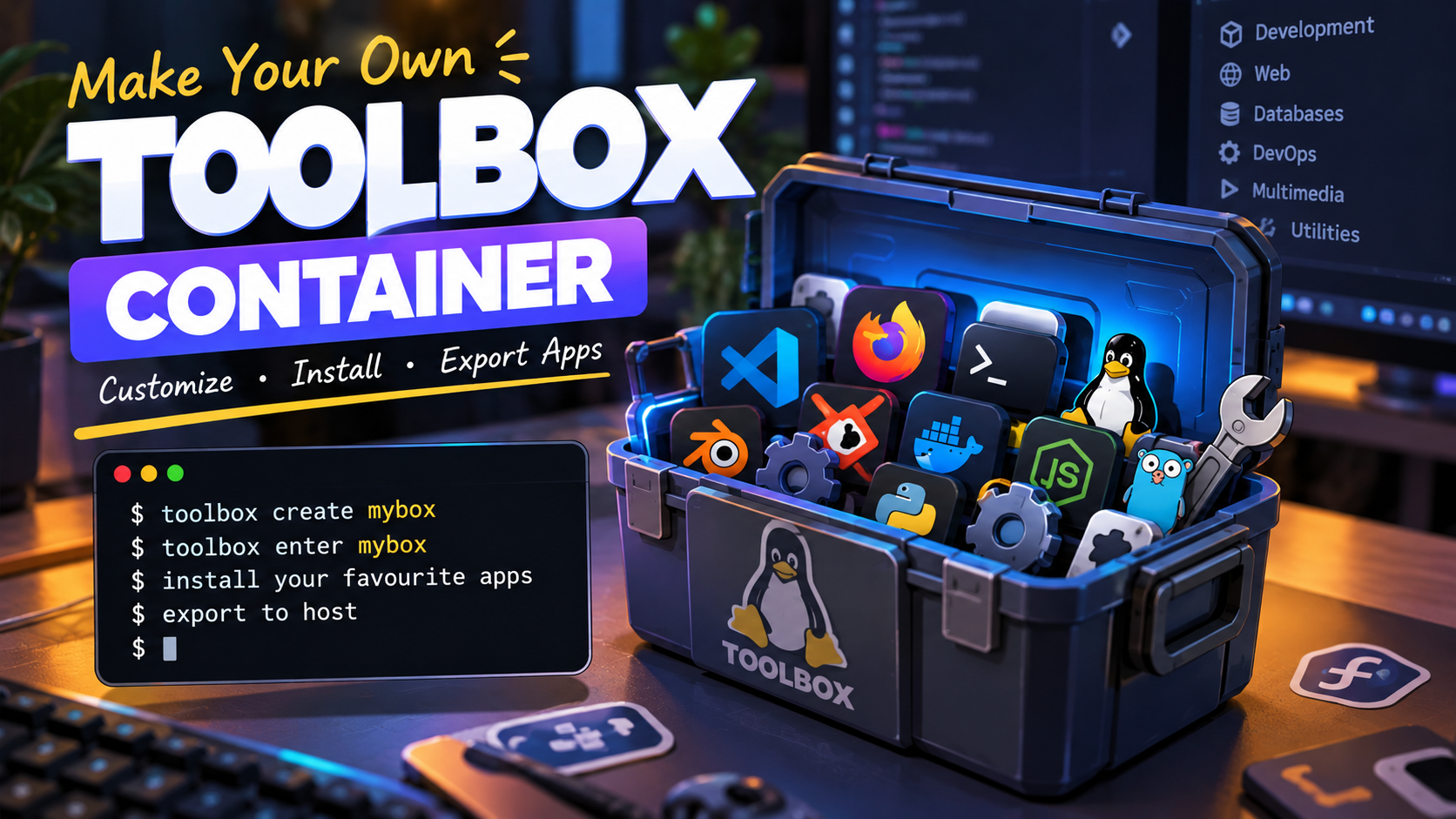
The issue wasn’t with Homebrew itself, it was that my host environment was missing the specific dependencies needed for that workflow. I could have installed more packages globally on the host, but that would have made the system more cluttered and harder to manage.
Similarly recently I was trying to develop an app in flutter for internal use but have faced issues running that .. and things got solved when I am using a sand boxed environment. Also for agents, toolbox can be a bliss . they can run any command and there is a very low chance of breaking stuff.
Why Toolbox?
Toolbox containers are useful because they integrate well with your host system without forcing you to abandon isolation. They share your home directory and can access host resources such as the SSH agent, while still giving you a clean, disposable Linux environment for development.
That makes them especially useful when you need a project-specific toolchain but don’t want to pollute your main system. They also make it easy to define a development workflow as code instead of manually installing packages every time.
I realized that if I could create my own customized Toolbox image, I could keep the tools and dependencies I use regularly in one reusable environment.
Defining Your Own Development Environment
If you work with package maintenance, formula development, or distro-specific tooling, learning to write a Dockerfile or Containerfile is incredibly valuable. It lets you build a consistent environment that is reproducible and version able.
Here is an example of an AlmaLinux based Toolbox image for Homebrew development:
FROM quay.io/toolbx-images/almalinux-toolbox:latest

LABEL com.github.containers.toolbox="true" \
    name="alma-brew" \
    version="latest" \
    usage="This image is meant to be used with the toolbox or distrobox command" \
    summary="AlmaLinux Toolbox with GCC and Homebrew for developing brew recipes" \
    maintainer="Pratyay Mustafi <[email protected]>"

# Copy setup scripts and package lists
COPY scripts/ /scripts/
COPY packages/ /packages/

# Run the setup scripts, then remove the build-time files
RUN chmod +x /scripts/*.sh && /scripts/*.sh
RUN rm -rf /scripts /packages
This approach makes it easy to build a container that includes exactly what you need, without modifying the host system.
I also wanted an Arch-based environment with Chaotic-AUR and paru, so I created a second image for that workflow:
FROM quay.io/toolbx/arch-toolbox:latest

LABEL com.github.containers.toolbox="true" \
    name="arch-chaotic-toolbox" \
    version="latest" \
    usage="This image is meant to be used with the toolbox or distrobox command" \
    summary="Arch Linux Toolbox with Chaotic-AUR and paru" \
    maintainer="Pratyay Mustafi <[email protected]>"

# Copy setup scripts and package lists
COPY scripts/ /scripts/
COPY packages/ /packages/

# Run the Chaotic-AUR setup script, then remove the build-time files
RUN chmod +x /scripts/*.sh && /scripts/chaotic.sh
RUN rm -rf /scripts /packages
A Simple Layout of the file structure.
A project like this can stay clean and easy to maintain if it follows a simple layout:
.
├── .github
│   └── workflows
│       ├── build.yml
│       └── clean-runs.yml
├── .gitignore
├── ContainerFiles
│   ├── brew
│   └── chaotic
├── LICENSE
├── README.md
├── packages
│   ├── brew.packages
│   └── chaotic.packages
└── scripts
    ├── brew.sh
    └── chaotic.sh
This structure keeps each concern separated:
scripts/contains the setup logicpackages/contains package listsContainerFiles/stores the image definitionsREADME.mdexplains how to build and use the environment
That keeps the workflow organized and easier to extend later.
Example Package List
For the Arch-based image, the package list can be as simple as this:
devel
git
paru
This is nice because package changes are declarative. If I need to add a tool, I can update the package list and rebuild the image whenever I need a new dependency or a different tool chain.
Setting up Chaotic AUR based toolbox
For Arch-based work, I also wanted a clean way to configure Chaotic AUR and install the packages I use most often. The setup script below does just that:
#!/usr/bin/env bash
set -euo pipefail

echo "==> Configuring Chaotic AUR repository..."
pacman-key --init
pacman-key --recv-key 3056513887B78AEB --keyserver keyserver.ubuntu.com
pacman-key --lsign-key 3056513887B78AEB
pacman -U --noconfirm 'https://geo-mirror.chaotic.cx/chaotic-aur/x86_64/chaotic-keyring.pkg.tar.zst'
pacman -U --noconfirm 'https://geo-mirror.chaotic.cx/chaotic-aur/x86_64/chaotic-mirrorlist.pkg.tar.zst'
sed -i 's|^Server = https://cdn-mirror.chaotic.cx|# Server = https://cdn-mirror.chaotic.cx|' /etc/pacman.d/chaotic-mirrorlist
printf '\n[chaotic-aur]\nInclude = /etc/pacman.d/chaotic-mirrorlist\n' >> /etc/pacman.conf

echo "==> Installing packages from chaotic.packages..."
grep -v '^#' /packages/chaotic.packages > /tmp/chaotic.pkglist
if [ ! -s /tmp/chaotic.pkglist ]; then
    echo "chaotic.packages is missing or empty" >&2
    exit 1
fi
xargs pacman -Syu --needed --noconfirm < /tmp/chaotic.pkglist
rm -f /tmp/chaotic.pkglist
rm -rf /var/cache/pacman/pkg/*

echo "==> Configuring toolbx permissions..."
echo "%wheel ALL=(ALL) NOPASSWD: ALL" > /etc/sudoers.d/toolbox
chmod 0440 /etc/sudoers.d/toolbox
This keeps the setup steps reproducible and easy to manage. If the Arch repository or package list changes, the update is straightforward.
Why This Workflow Works So Well
This pattern has several practical advantages:
- Reproducible builds : the environment is defined in code
- Portability: the same image can be built elsewhere
- Isolation: dependencies stay inside the container instead of the host
- Speed: no repeated manual package setup
- Simplicity: the environment is easier to debug and maintain.
It is a great fit for package maintenance, Linux tooling, custom formula work, and any development workflow that depends on a specific tool chain.
Toolbox/Distrobox gives you a flexible middle ground: you get the isolation of a container without losing the convenience of working closely with your host environment.
For me, building a specialized toolbox image solved an immediate problem and gave me a more maintainable sand boxed way to work going forward. I can now create exactly the environment I need, whether that’s for Home brew development, Arch based tooling, or any other project-specific workflow.
If you work with Linux tooling, package building, or want reproducible dev setups, this is a workflow with toolbox container based development is worth adopting. Source code on GitHub.
| toolbox container type | image link | ||
| brew-toolbox | quay.io/pratyay360/brew-toolbox:latest | docker.io/pratyay360/brew-toolbox:latest | ghcr.io/pratyay360/brew-toolbox:latest |
| chaotic-toolbox | quay.io/pratyay360/chaotic-toolbox:latest | docker.io/pratyay360/chaotic-toolbox:latest | ghcr.io/pratyay360/chaotic-toolbox:latest |
| android-toolbox | quay.io/pratyay360/android-toolbox:latest |